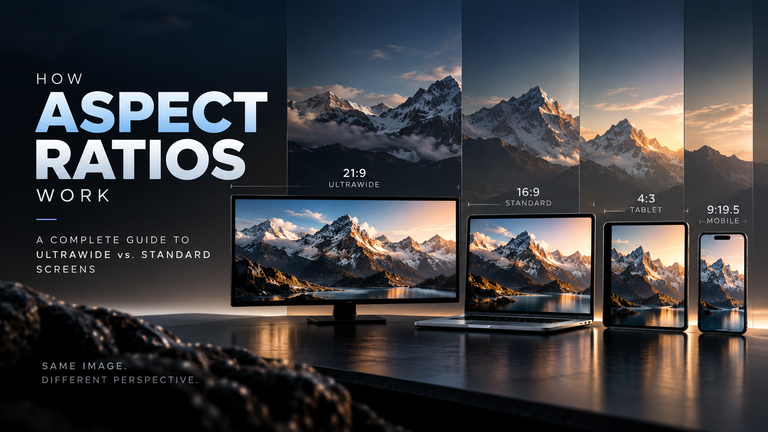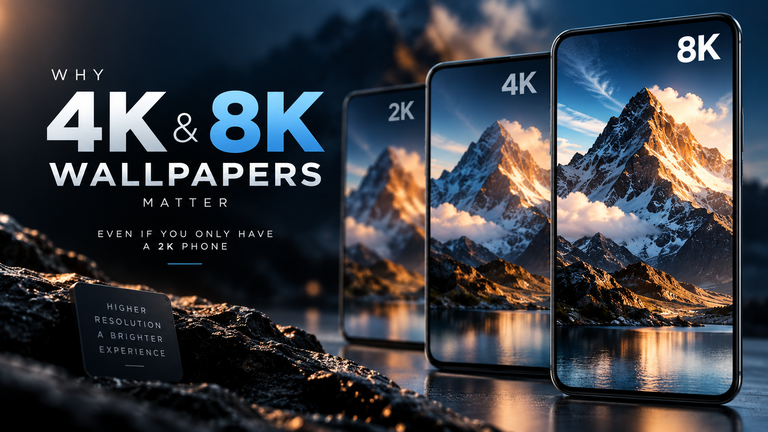

As 4K and 8K monitors become the standard for professional setups, many users discover that their favorite legacy wallpapers look incredibly blurry on their new displays. Historically, enlarging an image meant using “bicubic interpolation” in Photoshop—a mathematical process that simply stretches existing pixels and creates a soft, blurry mess. Today, the game has entirely changed. Artificial Intelligence doesn’t just stretch pixels; it actively hallucinates and paints entirely new, hyper-realistic details into the image. However, rather than paying expensive monthly subscriptions for cloud-based AI tools, you can run these neural networks entirely locally on your own graphics card.
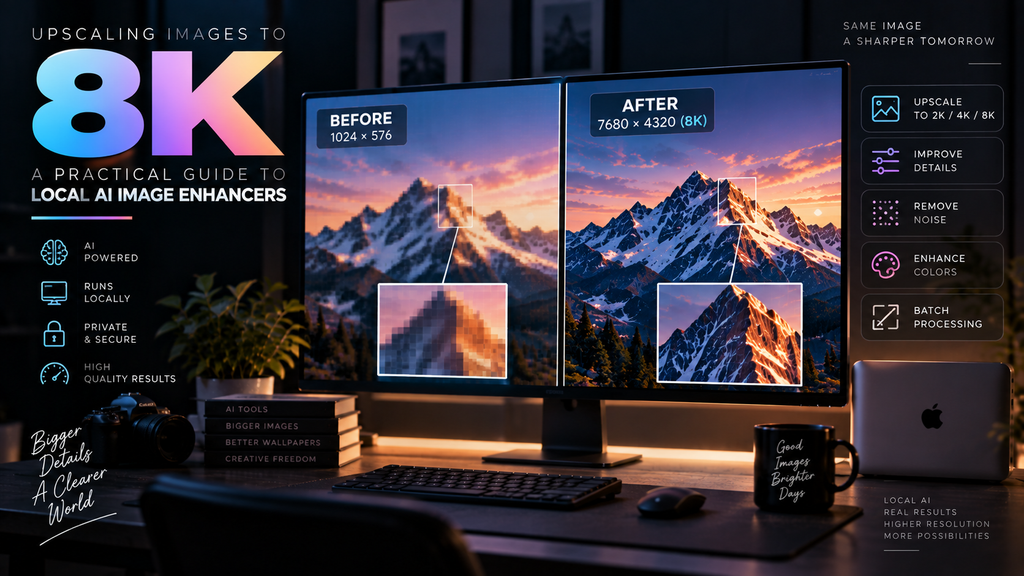
Table of Contents
- How AI Upscaling Defeats Bicubic Interpolation
- The Hardware Bottleneck: VRAM and Tiling
- Top Local Software: Upscayl vs. Topaz
- The Storage Conundrum: Archiving 8K
- Frequently Asked Questions (FAQ)
How AI Upscaling Defeats Bicubic Interpolation
When you upscale a 1080p image to 8K using traditional software, the computer looks at a blue pixel next to a red pixel and mathematically guesses that the new pixel between them should be purple. This creates a soft, unfocused transition.
AI image enhancers, such as those built on the Real-ESRGAN architecture, work entirely differently. These neural networks have been trained on millions of high-resolution photographs. When the AI looks at a blurry, low-resolution edge of a brick wall, it doesn’t just average the colors. It actively recognizes the pattern as “brick texture” and uses its training data to generate perfectly sharp, photorealistic mortar and clay details that never existed in the original file. This makes AI upscalers incredibly powerful for restoring vintage digital art or running cinematic 1080p stills through a local AI upscaler to create pristine desktop backgrounds.
The Hardware Bottleneck: VRAM and Tiling
Running a generative neural network locally is incredibly demanding on your Graphics Processing Unit (GPU), specifically its Video RAM (VRAM). When you attempt to push a 4K image to 8K, the software must load the entire neural network model and the massive image file into the VRAM simultaneously.
If you only have 4GB or 6GB of VRAM (common in mid-tier or older gaming laptops), the software will often crash with an “Out of Memory” error. The technical workaround for this hardware limitation is a process called “Tiling.”
When tiling is enabled, the upscaler breaks your wallpaper into small, manageable grids (e.g., 400×400 pixel squares). It runs the AI enhancement on one square at a time, clears the VRAM, and moves to the next, finally stitching the 8K image back together at the end. While this drastically increases the processing time, it allows nearly any modern computer to generate massive 8K wallpapers without crashing.
Top Local Software: Upscayl vs. Topaz
If you want to start upscaling your own collection, there are two primary routes to take regarding local software.
Upscayl (Free & Open Source): Upscayl is a cross-platform desktop application built on the Real-ESRGAN framework. It is completely free, respects your privacy by running entirely offline, and offers several different AI models depending on whether you are upscaling a digital painting or a real-world photograph. It handles VRAM tiling automatically, making it incredibly user-friendly.
Topaz Photo AI (Premium): Topaz is the industry standard for professional photographers. While it requires a paid license, it performs multiple tasks simultaneously. It doesn’t just upscale; its neural networks intelligently analyze the image for digital noise, chromatic aberration, and motion blur, repairing those flaws *before* enlarging the image. For highly degraded or heavily compressed source files, Topaz will almost always produce a cleaner final 8K result than open-source alternatives.
The Storage Conundrum: Archiving 8K
Once you begin generating 8K wallpapers, you will immediately run into a storage crisis. An uncompressed 8K PNG generated by Upscayl can easily weigh in at 80MB to 120MB per image. If you plan to build a substantial collection, you must adopt modern archival strategies.
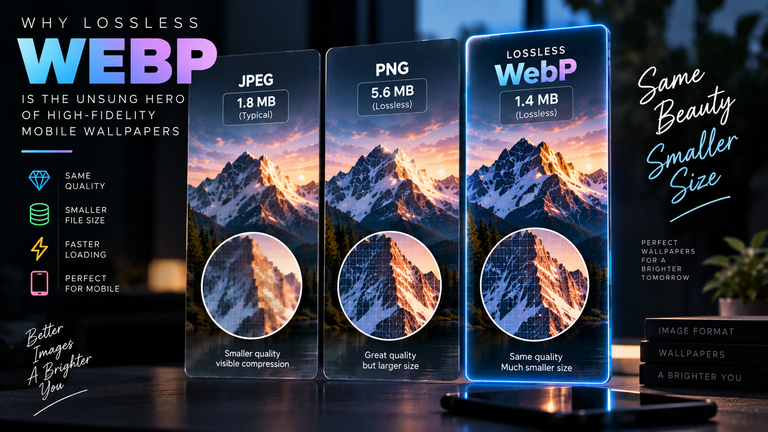
This is exactly why storing massive 8K files efficiently without losing data relies heavily on the Lossless WebP format. By converting your massive upscaled PNGs into Lossless WebP, you utilize predictive spatial coding to slash the file size by up to 30%, all without sacrificing a single pixel of the AI-generated sharpness you just spent hours rendering.
Frequently Asked Questions (FAQ)
Is cloud-based AI upscaling better than local?
Generally, no. Cloud services often impose strict file size upload limits, compress your final downloaded image to save bandwidth, and raise privacy concerns regarding data retention. Running an open-source tool like Upscayl locally guarantees maximum uncompressed quality, zero file size limits, and total privacy.
Why does my upscaled image look like a plastic painting?
This is known as the “watercolor effect.” It occurs when you push an AI model too far—such as trying to upscale a tiny 480p image directly to 8K. The neural network lacks enough foundational data to understand the texture, so it over-smooths the image, making human skin or landscapes look like melted plastic. Always start with the highest resolution source file possible to give the AI proper context.
Do I need an NVIDIA graphics card to use local AI?
While NVIDIA cards (utilizing CUDA cores) historically dominated AI workflows, modern software like Upscayl utilizes the Vulkan API. This means it runs highly efficiently on AMD Radeon GPUs, Intel Arc GPUs, and even the integrated graphics found on Apple Silicon (M1/M2/M3) Macs.