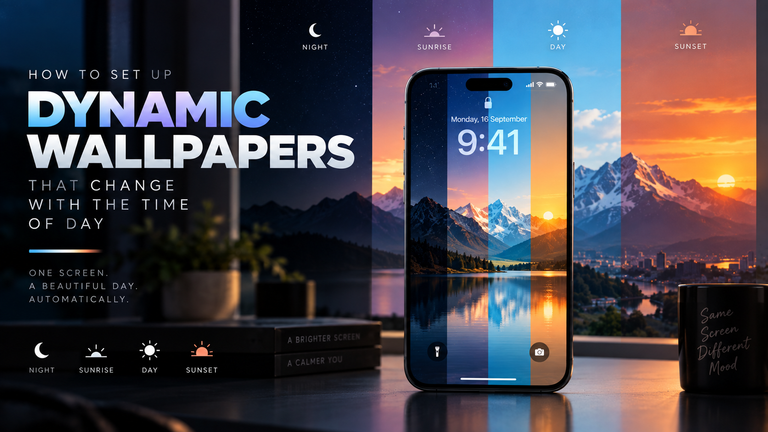

Your smartphone’s wallpaper doesn’t have to be a static image; it can function as a dynamic, ambient indicator of your device’s system status. One of the most useful and visually striking automations you can create is programming your phone to change its wallpaper automatically as your battery drains. Imagine your vibrant, bright home screen automatically shifting to a deep, minimalist black canvas the moment your battery drops below 20%, visually signaling that it is time to charge while simultaneously conserving power. Whether you use an iPhone or an Android, you can set up this advanced automation in just a few minutes using built-in system tools.
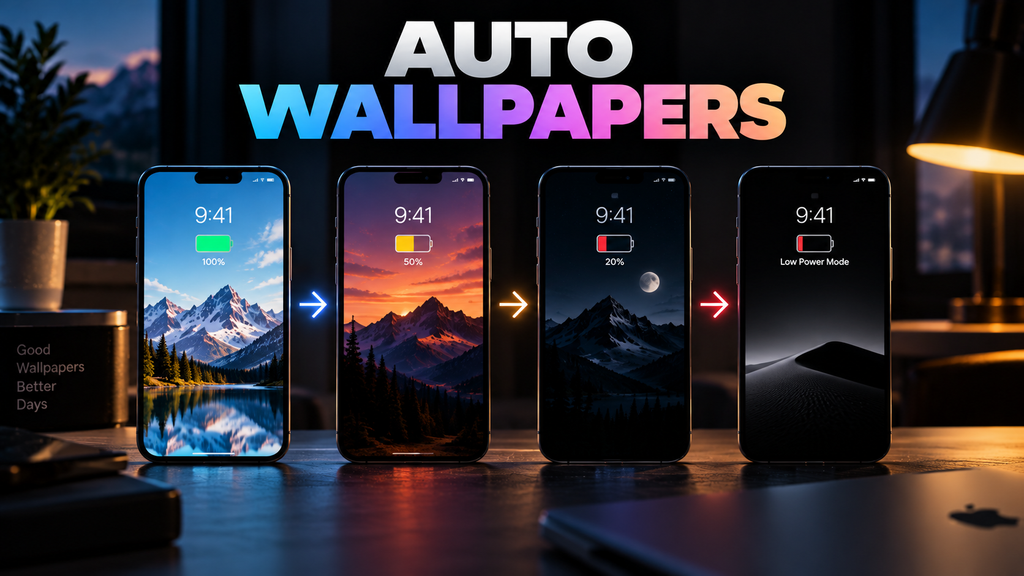
Table of Contents
- The Battery Strategy: Why This Works
- iOS Tutorial: Using Apple Shortcuts
- Android Tutorial: Samsung Modes & Routines
- Advanced Android: The Tasker Method
- Frequently Asked Questions (FAQ)
The Battery Strategy: Why This Works
Automating your wallpaper based on battery percentage is not just an aesthetic gimmick; it is a legitimate hardware management strategy for modern devices equipped with OLED displays.
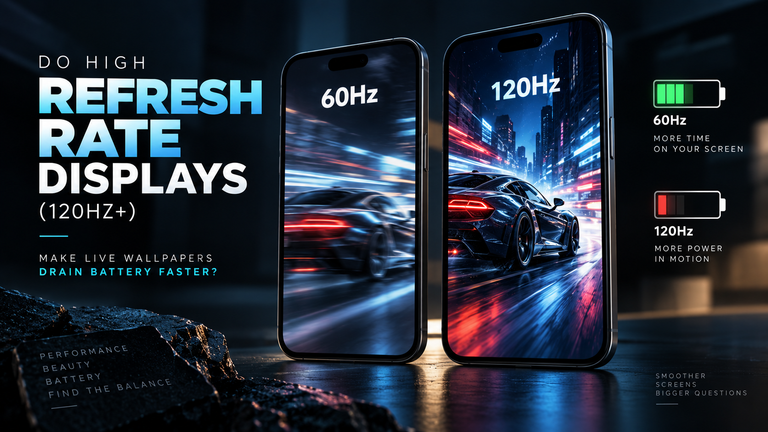
As detailed in our guide on using automation to switch to OLED dark wallpapers when battery is low, OLED screens do not use a universal backlight. Every pixel is individually powered. When a pixel displays true black (Hex code #000000), it literally turns off and consumes zero electricity. By forcing your phone to switch to a pure black minimalist wallpaper at 20% battery, you are instantly reducing the display’s power draw, squeezing out extra minutes of critical screen-on time.
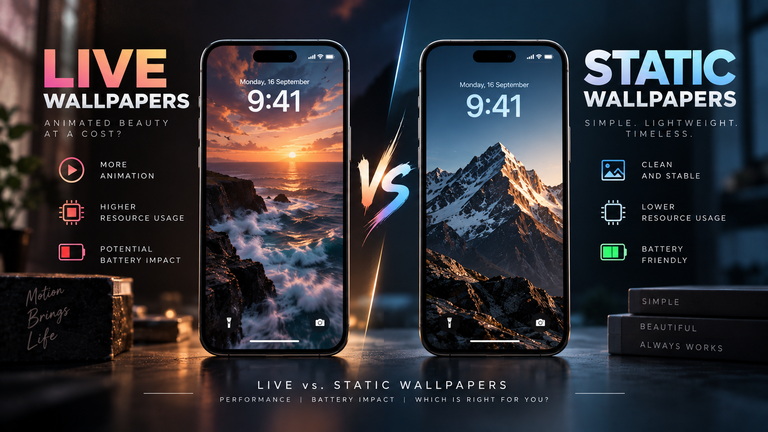
Furthermore, this automation serves as a fail-safe against high-intensity graphics. You can use this logic for automatically disabling live wallpapers to save RAM and battery. If you run a heavy 3D-rendered background at 100% battery, setting an automation to replace it with a static JPEG when Low Power Mode kicks in will immediately relieve your CPU and GPU of rendering duties.
iOS Tutorial: Using Apple Shortcuts
Apple users have access to one of the most powerful native automation tools on the market: the Shortcuts app. You do not need to download any third-party software to achieve this.
- Open the Shortcuts app on your iPhone.
- Navigate to the Automation tab at the bottom of the screen.
- Tap the + icon in the top right corner and select Create Personal Automation.
- Scroll down and select Battery Level.
- Drag the slider to your desired trigger point (e.g., 20%) and select Falls Below 20%. Tap Next.
- Tap Add Action and search for Find Photos. Add a filter to select the specific dark wallpaper from your photo album.
- Search for and add a second action: Set Wallpaper. Ensure it uses the photo from the previous step.
- Turn off Ask Before Running. This ensures the wallpaper changes silently in the background without requiring a confirmation tap.
You can create a reverse automation (triggering when the battery rises above 50% or when connected to power) to switch the wallpaper back to your vibrant daytime image.
Android Tutorial: Samsung Modes & Routines
If you are using a modern Samsung Galaxy device, the One UI operating system features a built-in automation engine called “Modes and Routines” (formerly Bixby Routines) that makes this incredibly simple.
- Open your device Settings and navigate to Modes and Routines.
- Tap the Routines tab at the bottom, then tap the + icon to create a new routine.
- Under the If condition, scroll down and select Battery level. Set it to “Below 20%”.
- Under the Then action, select Wallpaper.
- Choose the specific pure-black or minimalist image you want to apply to your Home Screen and Lock Screen.
- Save the Routine.
Samsung’s engine is highly intelligent; when your battery charges back above 20%, the Routine will automatically reverse itself, restoring your original wallpaper without needing a second setup step.
Advanced Android: The Tasker Method
If you are using a Google Pixel, Motorola, or OnePlus device that lacks a built-in routine engine, or if you simply want absolute granular control, Tasker is the undisputed king of Android automation.
In Tasker, you will create a Profile based on “State > Power > Battery Level” and set the range from 0 to 15. You will then link this Profile to a Task that executes the “Display > Set Wallpaper” action. The beauty of Tasker is that you can chain commands together. For instance, you can program the task to change the wallpaper to true black, instantly dim the screen brightness to 10%, turn off Bluetooth, and force the screen timeout to 15 seconds—creating the ultimate customized “survival mode” for your dying phone.
Frequently Asked Questions (FAQ)
Will having an automation constantly checking my battery drain power?
No. Built-in engines like iOS Shortcuts and Samsung Routines hook directly into the operating system’s native event listeners. They do not run constantly in the background; they simply wait for the OS to broadcast a “battery state change” event. The battery cost of the automation is mathematically negligible.
Can I trigger a wallpaper change based on Low Power Mode instead of a percentage?
Yes. In the iOS Shortcuts app, instead of choosing “Battery Level” as your trigger in Step 4, you can choose “Low Power Mode” > “Is Turned On”. This is useful if you manually engage Low Power Mode before a long flight and want your dark wallpaper to activate immediately.
Why does my iPhone wallpaper look zoomed in after the automation runs?
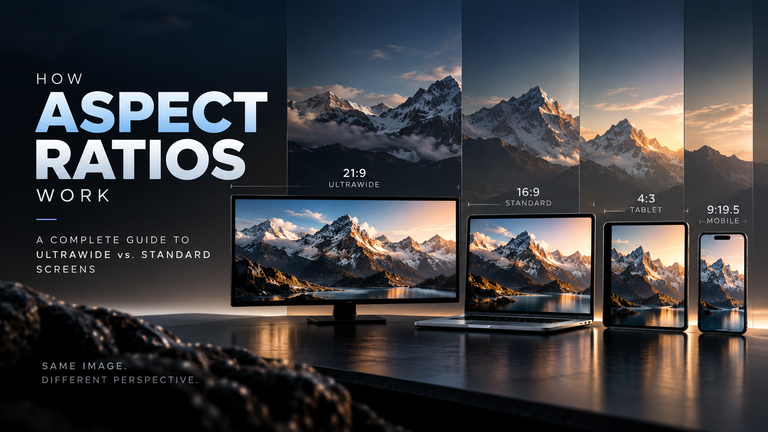
When using the “Set Wallpaper” action in iOS Shortcuts, tap the small arrow next to the action to expand its settings. Ensure that Legibility Blur is turned off and that your source image is cropped to the exact aspect ratio of your iPhone screen. If the image is not the correct aspect ratio, iOS will automatically crop and zoom it to fill the display.