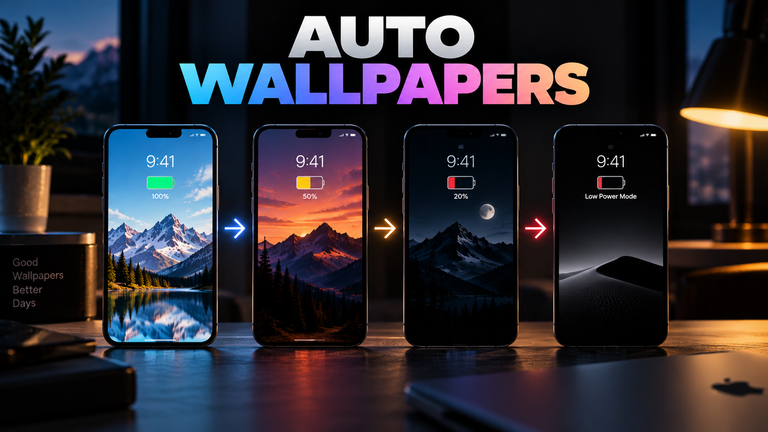

You can force your smartphone to automatically change its wallpaper based on the time of day by using built-in automation tools. On an iPhone, you use the Shortcuts app to create a “Time of Day” Personal Automation linked to a “Set Wallpaper” action. On a Samsung Galaxy, you use the Modes and Routines app to trigger a “Change Wallpaper” action at sunrise or sunset. By setting these routines to run automatically in the background, your phone will dynamically swap backgrounds without any third-party apps.
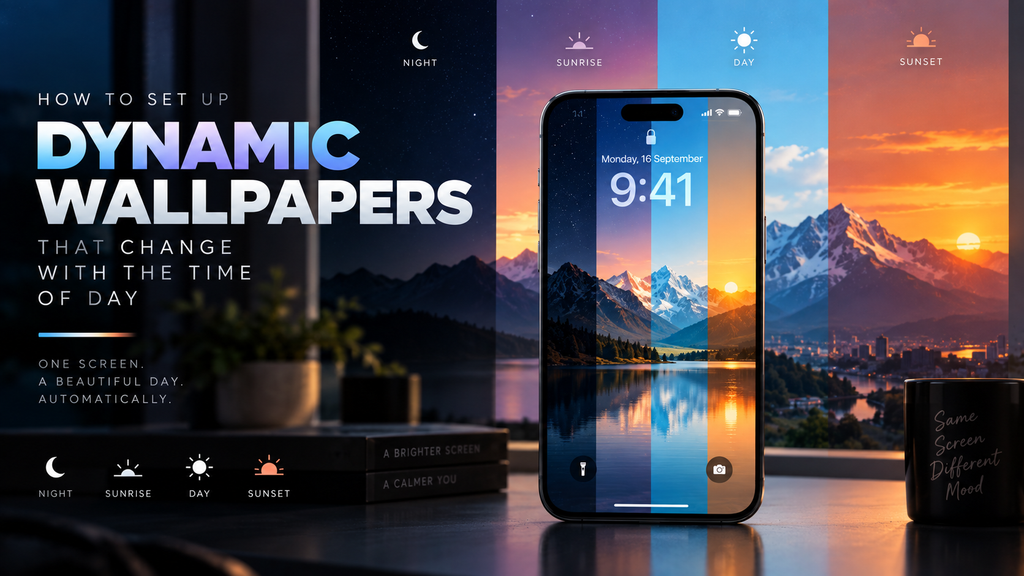
Table of Contents
- The Benefit of Dynamic Backgrounds
- How to Automate Wallpapers on iOS (iPhone)
- How to Automate Wallpapers on Samsung (Modes & Routines)
- Automating on Stock Android (Google Pixel)
- Frequently Asked Questions (FAQ)
The Benefit of Dynamic Backgrounds
Static wallpapers can become visually fatiguing. Tying your device’s aesthetic to the physical world outside creates a more natural user experience. By shifting your wallpaper color palette from cool to warm as night approaches, you can subtly signal to your brain that the workday is ending, helping to reduce digital eye strain and cognitive load.
Furthermore, setting a dark-themed wallpaper for the evening can significantly improve battery life if your phone has an OLED display. Once you master time-based automation, you can start exploring other powerful automation triggers, such as forcing your wallpaper to turn completely black when your battery hits 20%.
How to Automate Wallpapers on iOS (iPhone)
Apple’s iOS handles this natively through the Shortcuts app. Before you begin, ensure the photos you want to use are saved in your Photos app.
- Open the Shortcuts app and navigate to the Automation tab at the bottom.
- Tap the + icon in the top right corner to create a new Personal Automation.
- Select Time of Day as your trigger. You can choose a specific clock time, or select Sunrise or Sunset. Ensure the schedule is set to repeat “Daily”.
- Under the scheduling options, tap Run Immediately. This is critical—if you leave it on “Ask Before Running,” the wallpaper will not change until you manually tap a notification.
- Tap Next, then select New Blank Automation.
- Tap Add Action and search for Set Wallpaper. Tap it to add it to your workflow.
- Tap the faded “Image” variable in the action box and select the specific photo you want for that time of day.
- Tap Done.
To complete the cycle, repeat this exact process to create a second automation for the opposite time of day (e.g., creating a “Sunset” routine to switch to a dark wallpaper, and a “Sunrise” routine to switch back to a light one).
How to Automate Wallpapers on Samsung (Modes & Routines)
Samsung Galaxy devices running One UI have a deeply integrated automation engine called Modes and Routines.
- Go to Settings > Modes and Routines.
- Tap the Routines tab at the bottom, then tap the + icon at the top to build a new routine.
- Under the If section (the trigger), tap “Add what will trigger this routine” and select Time of day. Input your desired time or select Sunrise/Sunset.
- Under the Then section (the action), tap “Add what this routine will do.” Scroll down and select Wallpaper (or “Change wallpaper” depending on your One UI version).
- Select the Lock screen or Home screen (or both), and pick the specific image from your gallery.
- Tap Save and name your routine.
Just like on iOS, you will need to create a second routine to revert the wallpaper when the day is over.
Automating on Stock Android (Google Pixel)
If you are using a Google Pixel or a Motorola device running stock Android, you do not have a native “Routines” app built into the OS that can manipulate the home screen. You have two options:
- Cinematic Wallpapers (Pixel Only): Google Pixels offer “Cinematic” and “Emoji” wallpapers that can react to the time of day, but you cannot use your own custom photos for strict time-based swapping without a third-party app.
- Tasker or Wallpaper Changer: For a custom setup, download a trusted automation app from the Google Play Store. Tasker is the most powerful (but has a steep learning curve), while the app Wallpaper Changer is highly specific and allows you to build a time-based queue of custom images in minutes.
Frequently Asked Questions (FAQ)
Will changing wallpapers automatically drain my battery?
No. The Shortcuts app and Samsung Routines are system-level processes that are already running in the background. Triggering a wallpaper swap takes a fraction of a second of processing power. The impact on your daily battery life is virtually zero.
Can I use a live wallpaper in these automations?
Usually, no. Both iOS Shortcuts and Samsung Routines are currently limited to applying static images from your gallery. If you select a Live Photo on iOS, it will typically be applied as a static still frame.
Why didn’t my iPhone wallpaper change at sunset?
The most common reason for this failure is that “Ask Before Running” was left turned on in the Shortcuts automation settings. You must ensure “Run Immediately” is selected. Additionally, ensure your iPhone’s Location Services are turned on for the system, otherwise, the phone cannot calculate what time sunset occurs in your specific region.